How to speed up your computer
 Have you been wondering how to speed up your computer? Cacheman (short for Cache-manager), the award-winning Windows 10, 8.x, XP, Vista, and Windows 7 optimizer offers you a multitude of ways to speed up your computer. Cacheman has been developed with novice, intermediate, and expert users in mind. Immediately after installation, Cacheman examines your computer and automatically tweaks a vast number of cache settings, Registry values, system service options, and PC memory parameters.
 But this is only the start. Cacheman then continues to work quietly in the background, in order to speed up your computer even more by managing computer memory (RAM), program processes and system services. Cacheman makes sure that the active application gets the maximum possible processing power and available system memory. Cacheman also includes a special optimization for computer games, to prevent slow downs, lag, and stuttering caused by system tools like anti-virus programs.
Available in English, German, French, Spanish, Japanese and 14 other languages.
Intel Core and AMD Ryzen support
In addition to the already build-in Intel Core processor optimization, Cacheman 10.10 updates the optimization profiles for AMD Ryzen 7 1700, 1700X, 1800X and Ryzen 5 1400, 1500X, 1600, 1600X processors. The AMD Ryzen 7 processors consist of 16 CPU cores - 8 physical and 8 virtual (emulated) cores. The physical cores are placed onm the CPU die in two groups of 4 cores each, the so called CCX (CPU Complex).
The two groups are interconnected with with a 256-bit wide bi-directional crossbar. The speed of the crossbar is linked to the speed of your system memory (RAM). Within a CCX group CPU cores can communicate very quickly with each other. Communication between cores that sit on two separate CCX groups is significantly slower (by the factor of 2 and more).
Windows 10 appears to not be aware that the Ryzen CPU consists of two individual CPU core groups. Switching program threads from one CCX group to another can cause performance degradation on an otherwise very fast CPU.
During our tests in the Outertech lab we have discovered that tying some Windows applications to the first CCX group (4 physical + 4 virtual cores) can increase the performance by a significant factor, as thread switching between two CCX groups is avoided. This will work well only with application that do not make full use of all 16 cpu cores, particularly computer games.
Attention AMD Ryzen 7 users
Since we are expecting a fix from Microsoft on this issue we have decided against an automatic Cacheman optimization at this time. Users can manually try this optimization. Here is an example for the game Witcher 3:
1. Start the computer game you want to optimize, in this example Witcher 3.
2. Switch to desktop (alt + tab hotkey)
3. Launch Cacheman
4. Go to the Sticky Core Affinity tab
5. In the process list select witcher3.exe
6. Click on the Presets button and select Core 1-8
7. The Core Affinity will change from default to 1111111100000000
8. Restart Witcher 3
To optimize other games just look for the correct process name in the core affinity list.
Cacheman will remember this tweak and apply it automatically each time you start the game. We will continue to monitor this issue, and if Microsoft doesn't fix it with an update we will release a new Cacheman version with automatic Core Affinity optimization.
|
|
Dr. Adrian Tan |
|
Edward Mendelson, PC Magazine |
|
James Miller, Payette/Idaho |
|
Fix slow downs, lag, and stuttering in computer games and applications
Cacheman can fix slow downs, lag, and stuttering not only in desktop applications, but also in computer games including Battlefield 3|4, Call of Duty (CoD), Dishonored, Crysis 3, Skyrim, Witcher 3, Guild Wars 2, World of Warcraft (WoW), and Star Wars – The old Republic (SWTOR). Cacheman will give more CPU power and make more memory (RAM) available to the game. Slow downs, lag, and stuttering in computer games is often caused by background process and disk activity. For example, a background Virus-Scan performed by an Anti-Virus program can significantly slow down the computer. Windows system services are also often the cause for lag and stuttering in computer games.
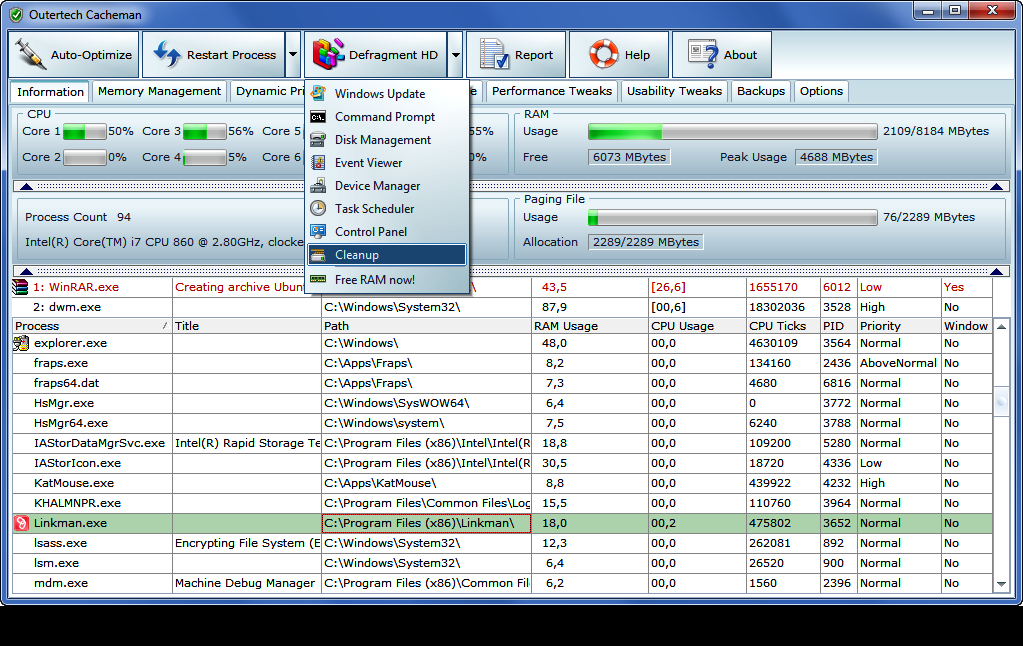
 Cacheman will dynamically regulate the priority of background processes (Anti-Virus programs, system services, Windows-Update installations) if they take too much CPU processing power. The front running application (in this case the computer game) will get a significant boost. Cacheman will also ensure that applications leaking (wasting) computer memory will not take away resources from the game. The dynamic priority feature is already pre-configured and works from the start.
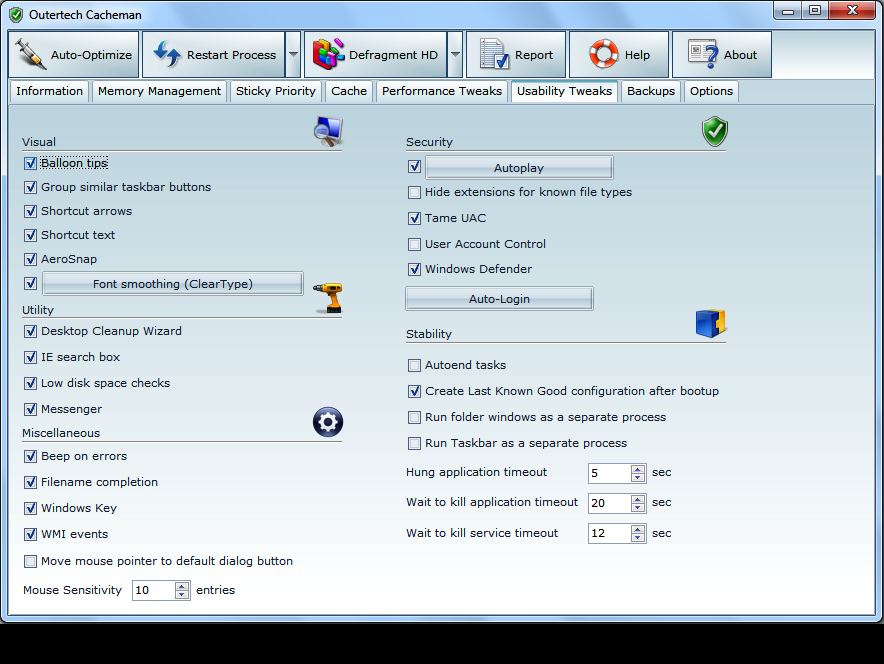
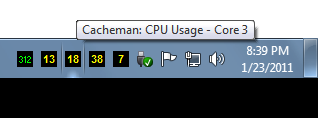
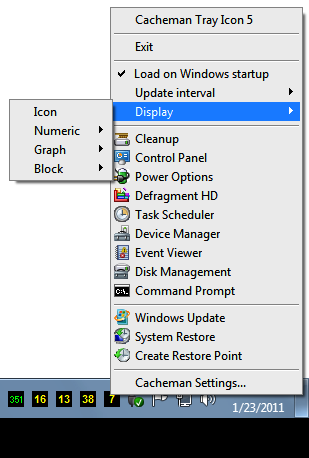
|
|
|
|
The first Windows performance optimization software ever!
The initial internet incarnation of Cacheman was introduced in early 1997 as the first Windows optimization application ever released. 15 years and millions of downloads later, Cacheman's 2013 edition is available as Version 7.70, fully supporting Windows XP/Vista and especially designed to speed up a Windows 10 and a Windows 7 | 8.1 computer. In its rich history Cacheman has been praised by almost every computer magazine world-wide.
Even Microsoft recommended Cacheman 5.11: "Cacheman enables you to tweak the cache settings for your hard drive, CD-ROM drive, desktop icons and file and folder names in much more detail. You can pick a typical profile, use the wizard or just experiment." Read the History of Cacheman for more details, but don't forget to download first!
Gaming PC, Server, Notebook, Desktop computer, and Digital Audio Workstation speed up
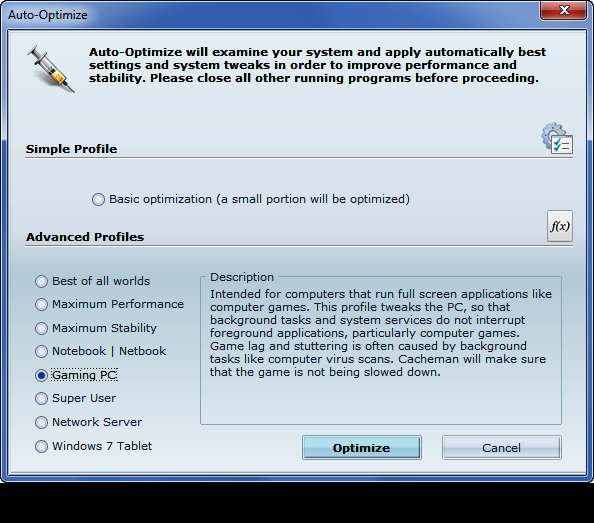
Cacheman allows you to choose from auto optimization profiles to speed up your computer and make it more reliable. For example, one of the profiles is designed to speed up a gaming PC. With this profile Cacheman makes sure that your games will not be interrupted by background tasks like computer virus scans. This will prevent games from lagging and stuttering.
Basic profile: designed to get a basic "feeling" how Cacheman optimization works.
Best of all worlds: the best choice for the majority of Desktop computers. Over 15 years of Windows optimization experience went into this profile. Thousands of computers and user reports have been analyzed to create a profile without any side effects that will provide a major speed up for every PC.
Maximum Performance: this profile takes the best of all worlds profile as a base and adds some experimental tweaks that can provide additional computer speed up. There is no long-term experience on some of these tweaks, so the profile is the first choice for users who like to experiment.
Maximum Stability: intended for computers that use old computer programs with stability issues. The grace period, fault tolerance and waitstates to handle badly written software will be increased. Do not use on stable computers. This profile consists of less aggresive tweaking, but still provides a major speed up for your computer.
Notebook | Netbook: best for laptop devices including Notebook and Netbooks. This is similar to best of all worlds profile, with one major difference. This profile takes battery life and thermal issues into account.
Digital Audio Workstation: A digital audio workstation (DAW) is a computer designed for recording and editing of digital audio. If you select this profile Cacheman will optimize Windows parameters to minimize system latency and improve audio editing performance.
Gaming PC: intended for computers that run full screen applications like computer games. This profile tweaks the PC, so that background tasks and system services do not interrupt foreground applications, particularly computer games. Game lag, slow downs, and stuttering is often caused by background tasks like computer virus scans. Cacheman will make sure that the game is not being slowed down.
Super User: designed for users who want full control of the computer. Warning messages from user account control (UAC) will be deactivated. Windows is tweaked for less tolerance for badly written software, so it cannot block other running applications.
Network Server: profile for systems that run 24/7, for example a network / LAN file server or an internet web server (running Apache or Microsofts Webserver IIS). Windows will be tweaked for background processes and long run-time caching.
Graphics | CAD workstation: A profile created for graphics artists, CAD and CAM modellers, animators and architects. Your system will be optimized for resource intensive tasks from 3D modeling, RAW image editing, scientific visualization to video rendering.
Windows 7-10 Tablet: This profile improves user interface responsiveness on several Windows 7-10 x86/x64 tablet computers including (but not limited to) Acer Iconia W510, Lenovo ThinkPad Tablet 2, Dell Latitude 10, and Microsoft Surface Pro.
What is a computer cache?
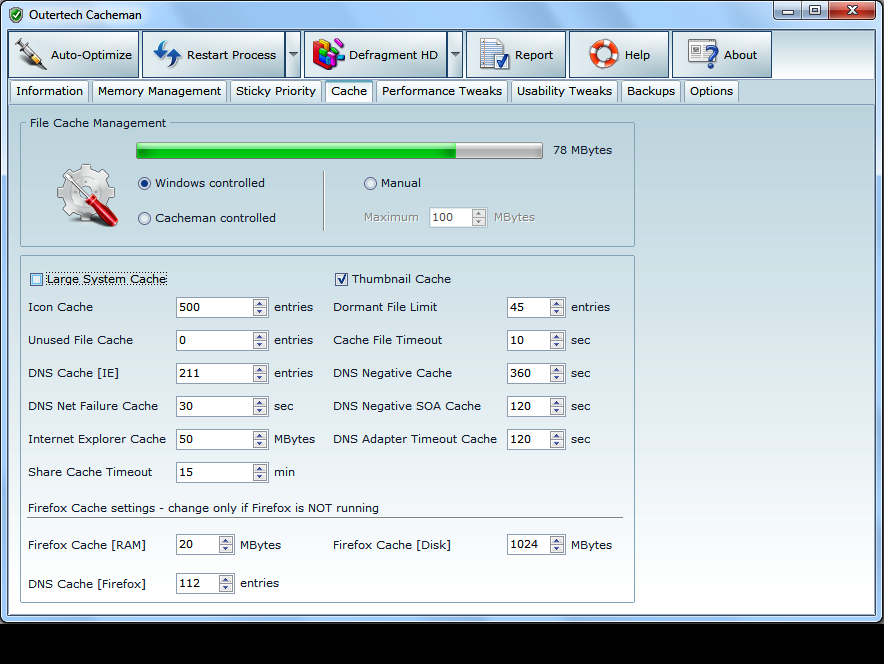 A computer cache (pronounced "kash") is a software or hardware component that stores user data so that future requests for that data can be served faster. It is faster to read and deliver data from the cache than to retrieve it from the original storage location. The more data can be served from the cache, the faster a computer speed up becomes. There is a multitude of caches, including the CPU cache, (write-through) disk cache, web cache (including proxy servers), DNS cache, icon cache and thumbnail cache. Cacheman tweaks several cache components on your computer.
Bringing the Nice factor to Windows
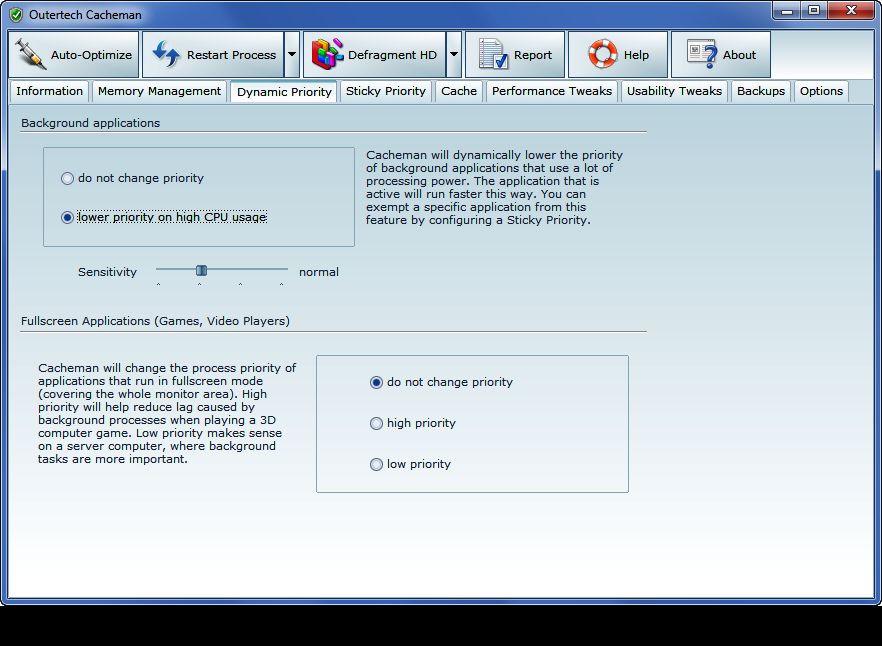 Nice is a function of the linux/unix system kernel that monitors program behavior and decreases the resources for programs that behave badly. This ensures that the system will not start to stutter when background applications use a lot of processing (CPU) power. Cacheman's Dynamic Priority feature brings the same functionality to your Windows 10, 8.x and Windows 7 PC! Cacheman will dynamically lower the priority of background applications that use a lot of processor time. The active frontrunning application will run faster this way.
Kathrin Douglas |
|
Philippe Broquet |
|
Steven Sears |
|
Martin Mayer |
|
George Baker |
|
Marco Pedroni |
|
A faster computer in 5 minutes!
Cacheman is easy enough for novices to use, yet powerful enough for advanced users. Never wonder again how to speed up your computer. Try Auto-Optimization and let Cacheman take the wheel, performing the most often needed tweaks to get your computer back up to speed.
Besides auto-optimization for a faster computer, you can alternatively manually take control by defining specific apps that should receive priority when the system allocates memory (RAM), or impose a limit on the amount of memory that a specific app is allowed to use!


Copyright (c) 1999-2024 Outertech. All Rights Reserved.